Showing posts with label preset shapes. Show all posts

Sunday, October 3, 2010

Easy Eggtoon Mouse, Vector Cartoon Tutorial


This tutorial was written for Paint Shop Pro version 7
Tutorial is offered here free of charge for personal use only!
Please read Terms of Use
©ArizonaKate.com 2001-2010, All rights reserved


(update for PSP 8-13 coming soon!)

If you are new to using vectors and haven't reviewed the Beginner Basics, please do so now.   On that page  is a review of the PSP tools, definitions of vector terminology, plus a tutorial for creating the Egg Preset Shape that we'll be using in all tuts.


This Easy Mouse tutorial was originally written in 2001 and is probably one of the easiest toons to draw with vector tools.   A great beginners project!   


Color settings for this tut: Select black for stroke color and any mouse color of your choice for fill. Pick a pastel, a bright color, a realistic color...doesn't matter...this is a cartoon!! I'll be using #BBA5AD, a lavender gray....for no particular reason! *G*    Both Texture boxes should be set to null.Ø


Remember, in Paint Shop Pro 7, to select any vector object for editing you must use the Object Selector.

Sunday, September 12, 2010

Honey Bunny Tutorial, PSP v.8 or newer


This tutorial was written for Paint Shop Photo Pro X2 (v.12)
but vector tools in versions PSP 8 and newer are very similar.
Tutorial is offered here free of charge for personal use only!
Please read Terms of Use
©ArizonaKate.com 2006-2010, All rights reserved

Note:  PSP 7 users go here

~ Beginner Level Tutorial ~

The EggToon tutorials are a series of Paint Shop Pro cartoon drawing tutorials written especially for those just beginning to learn about the vector tools but I hope more advanced users will enjoy the toons also. 

If you're not familiar with vector tools, please review the series of posts explaining the tools and how to make the "egg" Preset Shape before starting this EggToon character tutorial.

Color settings for this tut:

Select black for stroke color and any 'bunny' color of your choice for fill.
Pick a pastel, a bright color, a realistic color...doesn't matter...this is a cartoon!!
I'll be using color #F0C5A2.

Use the Pick tool to select vector objects and the Pen tool for node editing.


Open new image 300x300 or 400x400. We'll use a large canvas, but don't make bunny so large that it fills canvas!  We'll  need  plenty of working room

A new vector layor is automatically created when you start creating an object and 'Create as Vector' is selected on the Tool Options bar.
You can also click the 'new layer' button at the top of the Layer Palette and add a 'new vector layer'.

MAKE A SET OF SHAPES                                       

First thing we'll do is make all the Preset Shapes needed for Honey Bunny and then edit each one by one.

Select the 'Preset Shape' option on the flyout menu for Preset Shapes Tool and then select the egg from the dropdown list in the Tool Options bar.

Line width 1, style solid, retain style UNchecked, antialias CHECKED, vector CHECKED, colors as described above.

Draw an egg that is about 85x120 pixels in center of canvas.
Look in lower right section of PSP frame to see size of object being created or turn on rulers (View>Rulers)

Select the 'Ellipse' option on the flyout menu for Preset Shapes Tool and then select 'Draw Ellipse' on the Tool Options bar.    Draw 2 ellipses, any size (same settings, same colors).  Position them off to one side...anywhere on your canvas....they will become the ears, arms and legs later on.

Tuesday, August 31, 2010

Honey Bunny PSP7 Tutorial


This tutorial was written for Paint Shop Pro version 7
Tutorial is offered here free of charge for personal use only!
Please read Terms of Use
©ArizonaKate.com 2006-2010, All rights reserved

Note:  Users of PSP 8 and newer,
click here for updated Honey Bunny tutorial.


~ Beginner Level Tutorial ~

The EggToon tutorials are a series of Paint Shop Pro cartoon drawing tutorials written especially for those just beginning to learn about the vector tools but I hope more advanced users will enjoy the toons also. 

If you're not familiar with vector tools, please review the series of posts explaining the tools and how to make the "egg" Preset Shape before starting this EggToon character tutorial.

Color settings for this tut:

Select black for stroke color and any 'bunny' color of your choice for fill.
Pick a pastel, a bright color, a realistic color...doesn't matter...this is a cartoon!!
I'll be using color #F0C5A2.

Remember, in PSP 7, you must always use the Object Selector [OS] to select a vector object for editing.

Open new image 300x300 or 400x400. We'll use a large canvas, but don't make bunny so large it fills canvas!  We'll  need  plenty of working room

Create with a white background layer. Click the 'new layer' button on the layer dialog box and add a 'new vector layer'. All vector drawing will be done on this layer.

MAKE A SET OF SHAPES                                       

First thing we'll do is make all the Preset Shapes needed for Honey Bunny and then edit each one by one.

Select Preset Shapes tool and select the egg shape. ( (go here for step-by-step to create egg preset shape if you haven't created one already) )

Line width 1, style solid, retain style UNchecked, antialias CHECKED, vector CHECKED, colors as described above.

Draw an egg that is about 85x120 pixels in center of canvas.
Look in lower right section of PSP frame to see size of object being created or turn on rulers (View>Rulers)

Select ellipse shape and draw 3 ellipses, any size (same settings, same colors). Position them off to one side...anywhere on your canvas....they will become the ears, arms and legs later on.

Sunday, August 22, 2010

How to Create a Custom Preset Shape

All the EggToon cartoon characters will be built using Paint Shop Pro Preset Shapes.  We'll start with the basic 'egg' shape and add other Preset Shapes as needed.   You may already have an egg shape in your Preset Shapes folder, but possibly not.   This tutorial will show you how to make your own custom shape and add it to 'Preset Shapes'  for use over and over again to create some EggToon characters.

If you haven't reviewed previous 3 or 4 posts explaining the vector tools and terminology, you should probably review that information before starting this tutorial. If you're used to working with vector tools, you probably won't need to review.

This tutorial was originally written for PSP 7, but has been updated for newer versions. (PSP X2 screenshots)

Open new image, 200x200 pixels with transparent raster background and 16 million colors (RGB 8 bits).

The checkered background indicates that it is transparent....and we'll need to have a transparent background when we save our egg as a Preset Shape.


If you prefer not to work with a checkered background, you can use white for background layer and create egg on a NEW vector layer.    We'll want to save the Preset Shape with a transparent background, so we can just DELETE that white layer later, before exporting Preset Shape.

Drawing the egg shape


Set black as your stroke color.


Set fill color to null. The texture styles boxes should also be null.
Next, select the Preset Shapes tool, Ellipse.


Tool Options: 
Mode:  Ellipse. Retain style should be UNchecked.
Create on Vector and Show Nodes should both be checked.
Line Style Solid, Line Width 1, Antialias checked.


In Paint Shop Pro 8 and newer, the tool settings are located in the Tool Options Palette that appears above the workspace when the Preset Shapes tool is selected.


In Paint Shop Pro 7 and older, the tool settings are located in the Preset Shapes dialog box that pops up when the Preset Shapes tool is selected.   Not all options mentioned for new versions are listed in older versions but that won't be a problem.


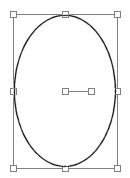
Draw an ellipse outline that is about 100 wide and 150 tall, similar to shape shown above.


Look in the lower margin of your workspace 
where PSP displays the size of the object as you draw it
along with some other information.

Use the Pick tool to deform vector objects in Paint Shop Pro 8 and newer.   (Some editing can be performed with Pen tool, but for this step, use Pick tool, located near top of toolbar on flyout with Mover tool.)


Below the Preset Shapes tool, in Paint Shop Pro 7 and older, is the Object Selector tool. This tool is used to select and edit all vector objects.   You must always use the Object Selector to select a vector  object for editing.


Select the ellipse shape. 
A boundary box appears around the ellipse that has 9 'handles' or nodes (shown as small boxes). 


The handles are in all 4 corners, plus one in center of each side and one in the very center of boundary box (which is the rotate handle). 


Hold down your Control key while you select one of the top corner handles.   A trapezoid shaped icon is displayed next to your cursor to indicate that you are now using the perspective deformation.

Keeping the Control key held down, move the top corner handle slightly toward the center of the ellipse until the shape gets a little narrower at the top, like an egg.


Now do the same thing on one of the bottom corners, except this time pull away from center until you are satisfied that your shape looks like an egg.

If you made the top or bottom too narrow or too wide, hold Control key down again and make adjustments by pulling a corner handle IN or OUT. 


Preset Shapes Library


You should now have an egg shape that looks something like this.

Next we'll save this egg shape as our own custom Preset Shape.

You can save any vector object to your Preset Shapes Library and then re-use them anytime just like the Preset Shapes that come with PSP.


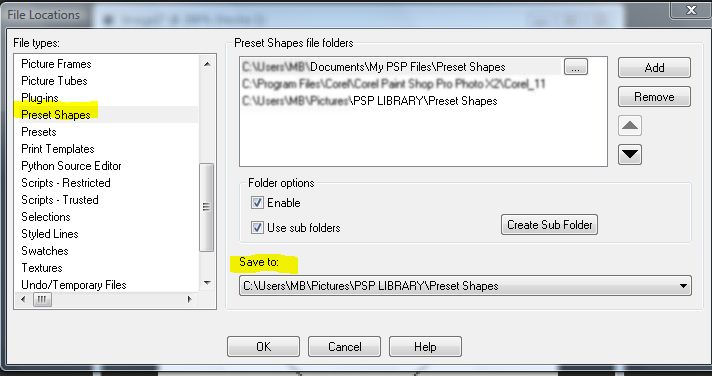
When you Export or Save a new Preset Shape, Paint Shop Pro will always save the shape to whatever folder is identified as your 'Save To' preference in the File Locations dialog box.   I will discuss changing that preference in a separate post, but you can view your preferences for Preset Shapes as follows:

For PSP 8 and newer, the settings are found in the File Locations dialog box by selecting 'Preset Shapes' from the list on the left side of dialog box.  (The File Locations dialog box  is under File | Preferences | File Locations).

For PSP 7 and older,  the settings are found under the Shapes tab in the File Locations dialog box (which is under File | Preferences | File Locations).


Look for the 'Save to' information to familiarize yourself with the file locations.


Saving Egg to Preset Shapes Library

If you used a white background when creating your shape, you need to delete that background layer now.    The shape we are saving must have a transparent background.

Make sure your egg is the active image and choose File | Export | Shape. The Export Shape Library dialog box will open and ask you to same the file.

In the dialog box, type the name for the shape you are saving....egg.   In newer versions of PSP, the file extension PspShape will be added:   egg.PspShape

Click OK to close the dialog box and SAVE the shape. It will be saved to your Shapes folder.

When you make the menu choice to Export Shape, a warning box may pop up that says:
Note: Only those vector objects currently selected will be exported to the shape library. To export all vector objects, make sure there is no selection before exporting.

This warning is a reminder....it occurs because there can be numerous objects in a vector drawing.
PSP gives you the option of selecting only ONE of the objects or ALL the objects to export as a preset shape and this pop up box is a reminder to check your selections!


In this case, because our drawing contains only one object...the egg.... it's not going to make any difference. You can continue by hitting OK.

Test Drive Your New Preset Shape


Let's try the new shape to see if everything is working OK!


Open a new image, 200x200 same as before (with white background).

Leave the stroke color as black but make the fill color any color of your choice.


Select the PreSet Shapes tool and locate the egg shape in the drop down list of shapes on the Tool Options bar (or, for older versions, in dialog box).


Retain style should be UNchecked to use the fill color, but check the boxes for antialias and create as vector.  Line style solid, size 1.

Now draw your egg preset shape, any size!!

Now draw it again, changing line width to 2 or 3 for a different look!

I hope eything is working well for you.   Leave a comment if you have a question and I'll try to answer.

We will be using this egg shape combined with other shapes to draw some easy Eggtoons!!    Future posts will have a number of beginner level toon tutorials and then we'll advance to more complex shapes, shading, and animating the toons!    See you then!

Friday, July 30, 2010

Let's Review the Vector Tools

All the EggToon tutorials will be written for those that consider themselves newbies and beginners to vector drawing! So, we must begin at the beginning and review the Paint Shop Pro tools that are used in the creation of a vector drawing.   With these tools we can size, shape, or rotate vector objects.  We can also transform vector objects by editing their nodes.


The Toolbar should be docked along the left side of your workspace (unless you've moved it). Most of the tools are used for drawing raster images, but there are 3 tools that can also create vector images: the TEXT tool, the PRESET SHAPES tool and the PEN tool.


The PICK tool may also be used to do some editing and selecting.  It is found near the top of the Toolbar on the flyout menu with the MOVE tool.

Note: The letters shown along the right margin of the flyout menus indicate keyboard shortcuts for these tools, if you like that option.   The main menu also indicates more keyboard shortcuts.


The little 'down' arrows adjacent to some tools on the Toolbar will show you a flyout menu when clicked.   The PRESET SHAPES tool has one of those menus.  There are 4 options on the flyout menu for this tool.
Preset Shape, Rectangle, Elipse and Symmetric Shape.  
Depending on which shape option is selected, a different set of choices will appear on the Tool Options palette.   


The Tool Options palette is located just above the workspace (by default).   It can be undocked and moved to other locations in the workspace.   In this tutorial series, we'll assume your Tool Options are above the workspace and the palette hasn't been moved.   Every tool in the Toolbar has a corresponding set of Tool Options and the Tool Options palette will change according to tool selected.

When Preset Shape is the active tool selection, an additional Shapes List will be available on the Tool Options palette that looks similar to the image below.


Many Preset Shapes come with PSP ...more than what's shown here....and even more can be downloaded to add to your Shapes Library.   In an upcoming tutorial, I'll be showing you how you can make your own Preset Shape when we make an "Egg" shape for our EggToons.


Back to reviewing the other 2 vector tools, the TEXT tool and the PEN tool.   They also have additional options. The image below shows a portion of the Tool Options palette that appears when TEXT tool is selected.


Choosing Vector on the Tool Options palette gives you many more editing options than creating with raster text.    You can easily move vector text around, stretch or compress it, change the text entry (what it says), change the color, size, outline, and other properties as many times as you want (without starting over).

There are some menu options that will require you to convert vector text back to raster.    We'll go over all these options as we use them.

Anybody can draw a straight line using the PEN tool.  No more shaky mouse-drawn pixel lines...take a little care and every vector line will be perfect!!! 


Use the PEN tool to draw straight lines, freeform lines and line segments.
There are 5 modes to select from on the Tool Options palette for the PEN tool.  Two modes for editing and three for drawing.
Edit mode (select)
Knife mode (cut)
Draw Lines & Polylines (line segments and curves)
Draw Point to Point (controlled draw) and Draw Freehand.
There are a number of other options on the Tools Options palette for PEN tool, such as 'line style'.   We'll go over all these options as we use them.

So that about covers the 'what' and 'where' for the tools and their options.  We'll talk about 'why' on another day.  But, before that, we'll need to go over some new terminology.   That'll be next....see you then!


.